

Sidebar
The top of the sidebar holds the main views:- Dashboard: system status, running scripts, and featured listings.
- Scripts: your script files, the editor, and the Tools panel. See the quickstart, Use Assistant, and Record a macro.
- Marketplace: browse, buy, and install scripts. See Buying scripts.
- Devices: your Rebind Link. It appears once Rebind has detected a Rebind device. See Hardware Setup.
- Peripherals: the keyboards and mice routed through Rebind Link. It is hidden in software mode. See Attach your devices.
Dashboard
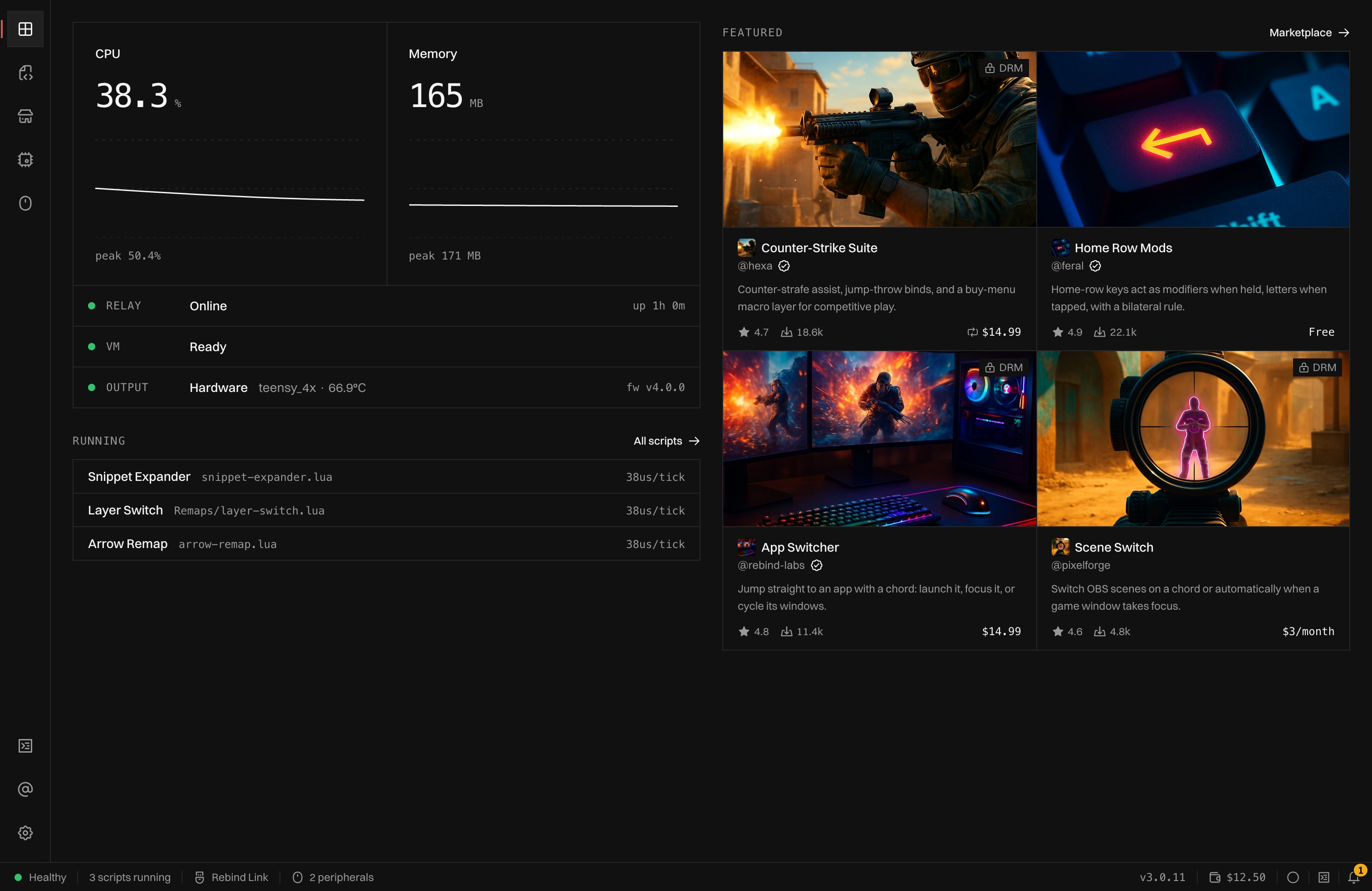
The Dashboard: CPU and memory, relay, VM, and output status, running scripts, and featured listings. Sample data.
- CPU and Memory graph the Rebind relay process.
- Relay shows Online or Offline and how long the relay has been up.
- VM shows Ready or Offline. It is the capture environment hardware mode uses; when it is offline the row says scripts are paused. The row is hidden in software mode when no Rebind Link is connected.
- Output shows Software or Hardware. In hardware mode it names the board, its temperature, and its firmware version.
- Running lists the scripts that are running, with their time per tick. Click one to open it in Scripts, or All scripts to open Scripts.
- Featured shows up to four marketplace listings that Rebind picked. The section is hidden when nothing is featured.
Status bar
The status bar is on every page. From the left:- Healthy, Degraded, or Offline. Offline means the app cannot reach the relay. Degraded means a Rebind Link is connected but the VM is not ready, so hardware mode is unavailable.
- How many scripts are running and how many are waiting for their target app. Click it to open Scripts.
- The output mode. Click it to open Settings.
- While a peripheral attaches or returns, its progress. In hardware mode, the number of attached peripherals. Both open Peripherals.
- While Assistant is working, Assistant and a stop button.
- The Rebind version.
- Your username, which opens your profile. Set username appears until you claim one.
- Signed in, your wallet balance, which opens the wallet.
- The macro recorder circle. See Record a macro.
- The console button.
- The notification bell.
Console
The console shows log lines from Rebind and every script, and takes commands. Open it with Console in the sidebar, the console button in the status bar,Ctrl+J (Cmd+J on macOS), or a tap of Right Alt. The shortcuts open a
drop-down console over the current page; press them again to close it.
Filter lines by level (info, debug, warn, error) and by source, and by file
when more than one file logs. Type
help for the command list. Up and Down step through earlier commands.
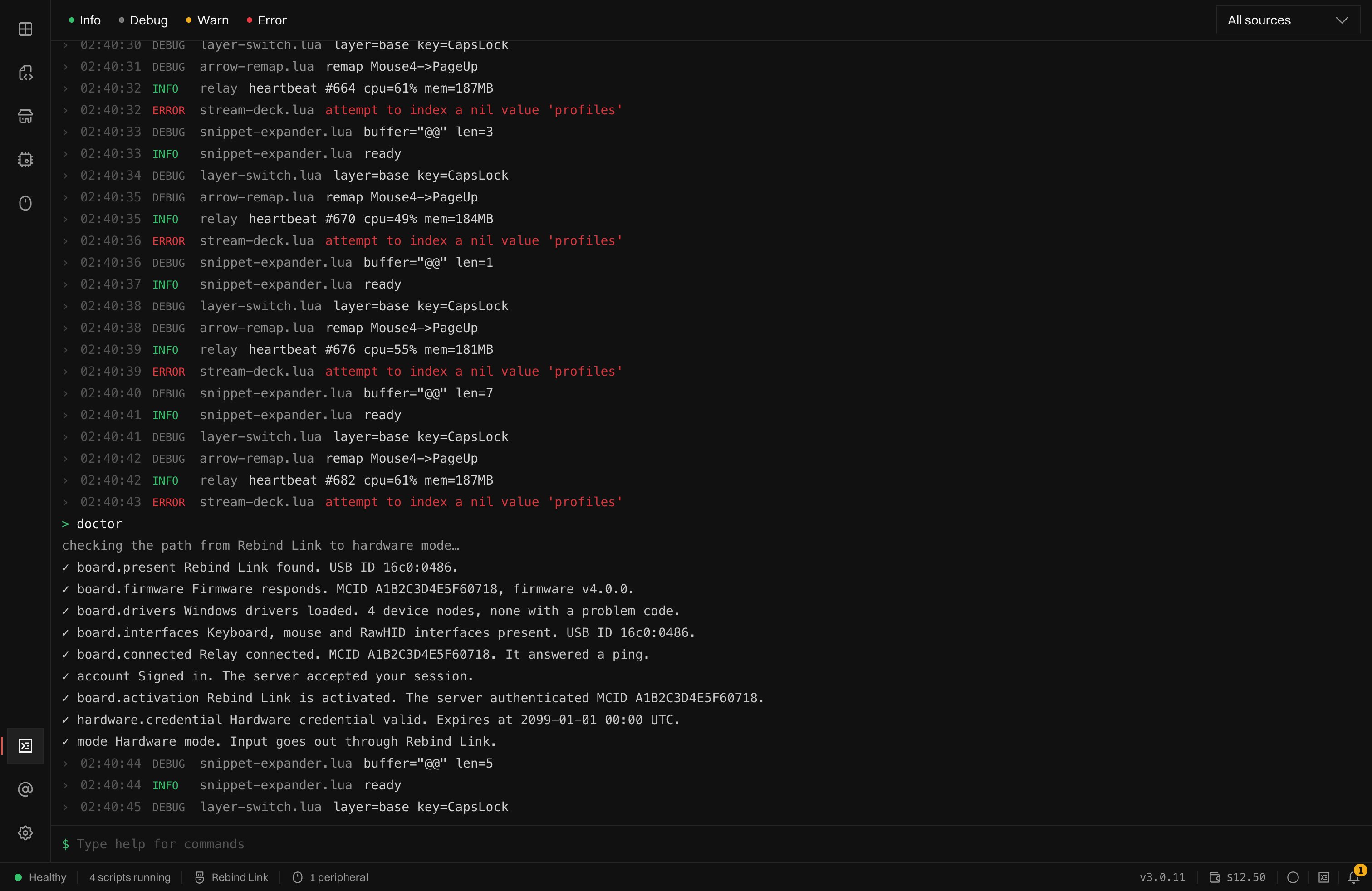
The doctor command walks the chain from Rebind Link to hardware mode.
Notifications
The bell in the status bar collects notifications: messages scripts send withrb.ui.notify, marketplace scripts that updated, and notices for your
account, such as a script shared with you. A badge counts the ones that arrived
since you last opened the list. Hover a notification and click the cross to
dismiss it, or click Clear all. A shared script’s notification has a
Review button that opens the import dialog.
To also show script notifications as system notifications, turn on
Desktop notifications in Settings.
Settings
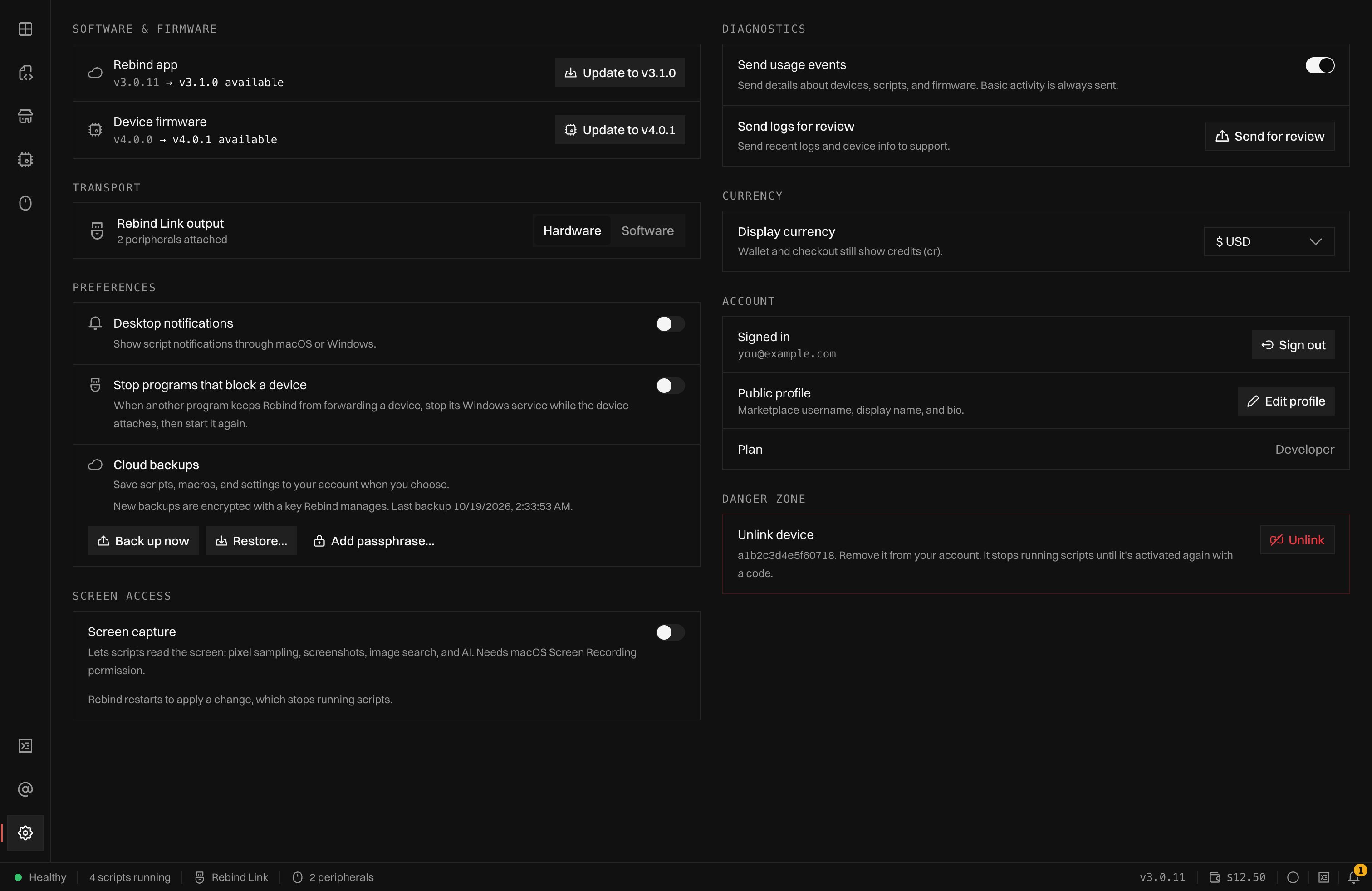
Settings: software and firmware, transport, preferences, screen access, diagnostics, currency, account, and danger zone.
- Software & firmware: the installed Rebind version and the latest one. On macOS, Update to installs a newer version after macOS asks for your password; elsewhere, Download fetches the installer. With a Rebind Link connected, Device firmware offers a firmware update when one exists.
- Transport: switch between Hardware and Software output. Hardware needs you to be signed in. See How it Works.
- Preferences:
- Desktop notifications: show script notifications as system notifications, at most one per second. Off by default.
- Stop programs that block a device (Windows): when another program’s service keeps Rebind from forwarding a device, stop that service while the device attaches, then start it again. The first time it happens, Rebind asks.
- Cloud backups: back up and restore scripts, macros, and settings. See Sharing and backups.
- Screen access (macOS only): Screen capture lets scripts read the screen. See Platforms.
- Diagnostics: Send usage events sends details about devices, scripts, and firmware; basic activity is always sent. Send for review sends logs to support; see Send logs for review.
- Currency: the currency prices are shown in. Wallet and checkout still count credits.
- Account: sign in or out, Edit profile, and your plan.
- Danger zone: shown when a device is linked to your account. Unlink removes it; it stops running scripts until it is activated again with a code.