> ## Documentation Index
> Fetch the complete documentation index at: https://docs.rebind.gg/llms.txt
> Use this file to discover all available pages before exploring further.
# Record a macro
> Record keyboard and mouse input in the app, save the sequence, and replay it with a hotkey.
Use the status bar recorder to save a sequence of keys, clicks, mouse movements,
and scrolling without writing a script. Start with Rebind running as described
in the [quickstart](/getting-started/quickstart).
Screenshots use the app's mock backend. Recordings, filenames, and version
labels are sample data.
## 1. Choose a record hotkey
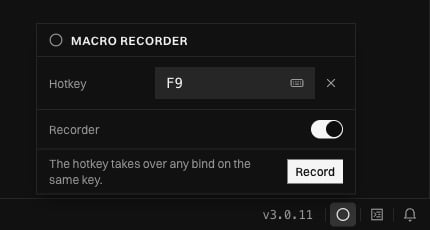
Click the circle near the bottom-right corner of the app to open **Macro
recorder**. Leave **Recorder** on. Click the **Hotkey** field, then press a key
you want to use for starting and stopping a recording. This example uses `F9`.
Choose a single key, not a mouse button, modifier, or Caps Lock. While the
recorder is enabled, that key is reserved for recording: it takes priority over
script bindings, does not reach the target app, and is excluded from the take.
 ## 2. Record the sequence
1. Switch to the app where you want to record and put it in the starting state.
2. Press your record hotkey once, then perform the sequence.
3. Press the same key again to stop and save.
You can also click **Record** in the menu, then reopen it and click **Stop**.
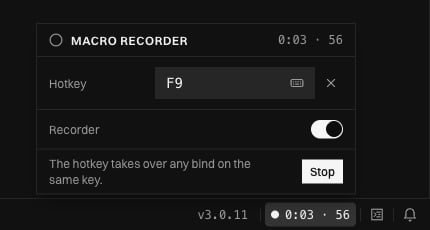
While recording, the status bar shows elapsed time and the number of captured
actions. Only one recording can run at a time, including recordings started by
scripts.
## 2. Record the sequence
1. Switch to the app where you want to record and put it in the starting state.
2. Press your record hotkey once, then perform the sequence.
3. Press the same key again to stop and save.
You can also click **Record** in the menu, then reopen it and click **Stop**.
While recording, the status bar shows elapsed time and the number of captured
actions. Only one recording can run at a time, including recordings started by
scripts.
 ## 3. Open the saved macro
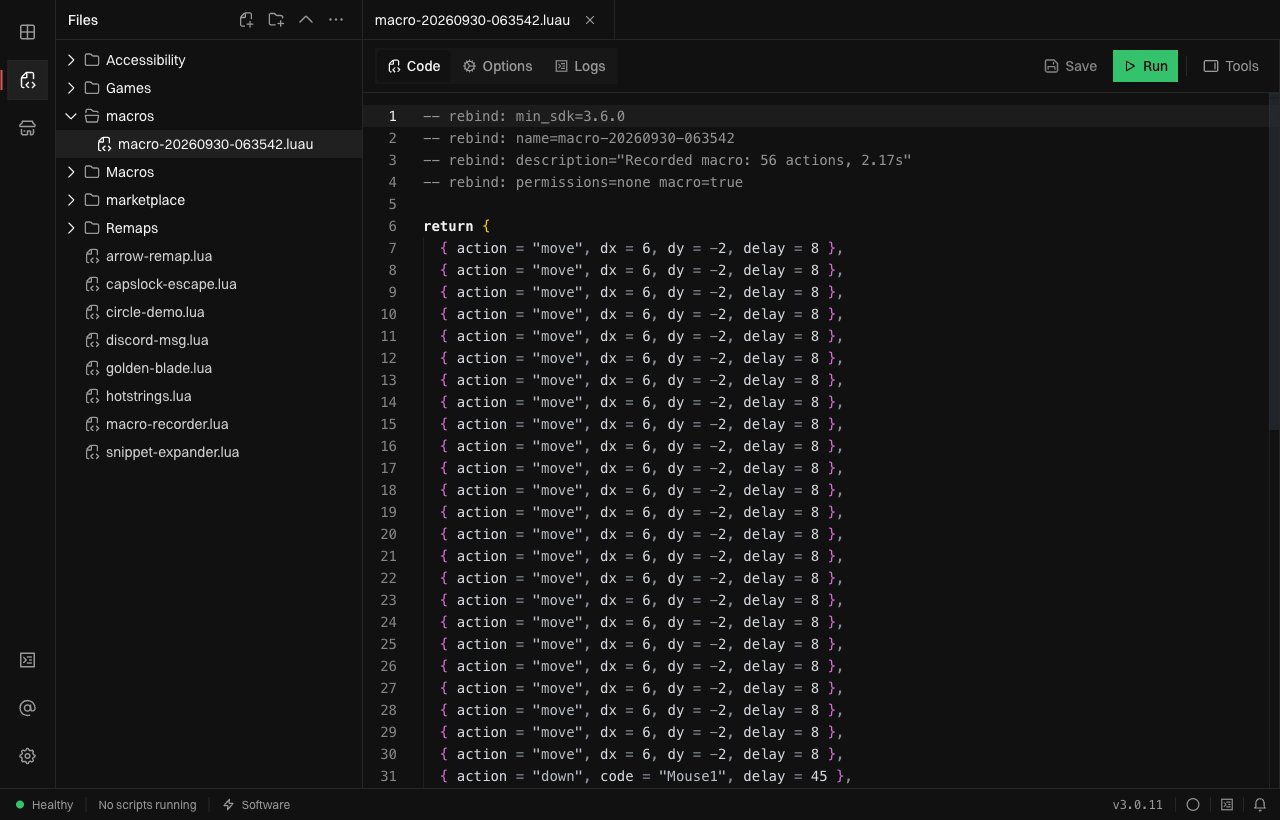
Click the **Macro saved** notification to open the file. You can also open
**Scripts**, expand the lowercase **macros** folder, and select it there. Each
take gets a `.luau` file named `macro-YYYYMMDD-HHMMSS` in your
[scripts folder](/getting-started/quickstart#your-first-script).
The **Code** view shows the recorded actions and their delays. You can leave
the code as it is and configure playback in **Options**.
## 3. Open the saved macro
Click the **Macro saved** notification to open the file. You can also open
**Scripts**, expand the lowercase **macros** folder, and select it there. Each
take gets a `.luau` file named `macro-YYYYMMDD-HHMMSS` in your
[scripts folder](/getting-started/quickstart#your-first-script).
The **Code** view shows the recorded actions and their delays. You can leave
the code as it is and configure playback in **Options**.
 ## 4. Set up playback
With the macro stopped, open **Options**:
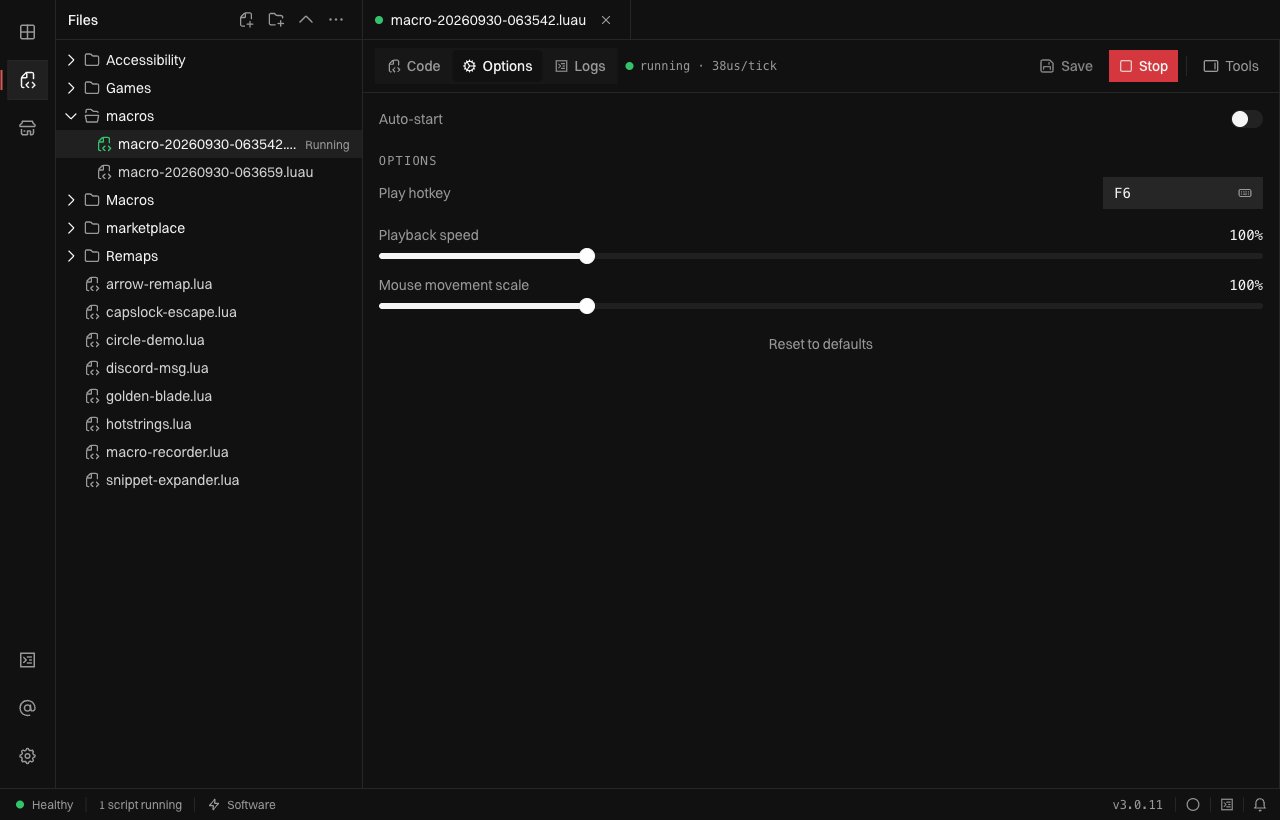
* Click **Play hotkey**, then press a different key from the record hotkey.
This example uses `F6`.
* Leave **Playback speed** at `100%` for the recorded timing. `200%` halves the
delays; `50%` doubles them.
* Leave **Mouse movement scale** at `100%` for the recorded movement amounts.
Increase it for more travel or decrease it for less.
These settings save automatically. Click **Run** to arm the play hotkey, switch
to the target app, restore its starting state and cursor position, then press
the play hotkey. Pressing it again during playback restarts the sequence.
## 4. Set up playback
With the macro stopped, open **Options**:
* Click **Play hotkey**, then press a different key from the record hotkey.
This example uses `F6`.
* Leave **Playback speed** at `100%` for the recorded timing. `200%` halves the
delays; `50%` doubles them.
* Leave **Mouse movement scale** at `100%` for the recorded movement amounts.
Increase it for more travel or decrease it for less.
These settings save automatically. Click **Run** to arm the play hotkey, switch
to the target app, restore its starting state and cursor position, then press
the play hotkey. Pressing it again during playback restarts the sequence.
 With **Play hotkey** left at **None**, **Run** plays the take once and the
script stops. To change playback settings for another run, stop the macro,
adjust **Options**, then run it again.
## Stop or disable
Click the macro's **Stop** button in Scripts to stop playback and disarm its
play hotkey. `Left Ctrl + Left Alt + K` stops all scripts and releases held
input.
To free the record hotkey for normal use, click **Clear hotkey** (the cross
beside it) or turn **Recorder** off in the recorder menu. Stop and save an
active take first.
For recording from Luau, use the [recording recipe](/cookbook/productivity#record-and-replay-a-macro).
For reusing a saved take inside another script, see [`require`](/reference/sdk-reference#require)
and the [Macro API](/reference/sdk-reference#macro).
With **Play hotkey** left at **None**, **Run** plays the take once and the
script stops. To change playback settings for another run, stop the macro,
adjust **Options**, then run it again.
## Stop or disable
Click the macro's **Stop** button in Scripts to stop playback and disarm its
play hotkey. `Left Ctrl + Left Alt + K` stops all scripts and releases held
input.
To free the record hotkey for normal use, click **Clear hotkey** (the cross
beside it) or turn **Recorder** off in the recorder menu. Stop and save an
active take first.
For recording from Luau, use the [recording recipe](/cookbook/productivity#record-and-replay-a-macro).
For reusing a saved take inside another script, see [`require`](/reference/sdk-reference#require)
and the [Macro API](/reference/sdk-reference#macro).