> ## Documentation Index
> Fetch the complete documentation index at: https://docs.rebind.gg/llms.txt
> Use this file to discover all available pages before exploring further.
# App Tour
> Find your way around the Rebind app: the sidebar, Dashboard, Console, Settings, notifications, the status bar, and your profile and wallet.
The Rebind app is one window with a sidebar on the left and a status bar along
the bottom. This page covers the parts that have no page of their own. Scripts
start in the [quickstart](/getting-started/quickstart), and the other views
link to their own guides below.
## Sidebar
The top of the sidebar holds the main views:
* **Dashboard**: system status, running scripts, and featured listings.
* **Scripts**: your script files, the editor, and the Tools panel. See the
[quickstart](/getting-started/quickstart#your-first-script),
[Use Assistant](/getting-started/assistant), and
[Record a macro](/getting-started/macros).
* **Marketplace**: browse, buy, and install scripts. See
[Buying scripts](/marketplace/buying).
* **Devices**: your Rebind Link. It appears once Rebind has detected a Rebind
device. See [Hardware Setup](/getting-started/hardware-setup).
* **Peripherals**: the keyboards and mice routed through Rebind Link. It is
hidden in software mode. See
[Attach your devices](/getting-started/hardware-setup#attach-your-devices).
The bottom of the sidebar holds **Console**, **My profile**, and **Settings**.
## Dashboard
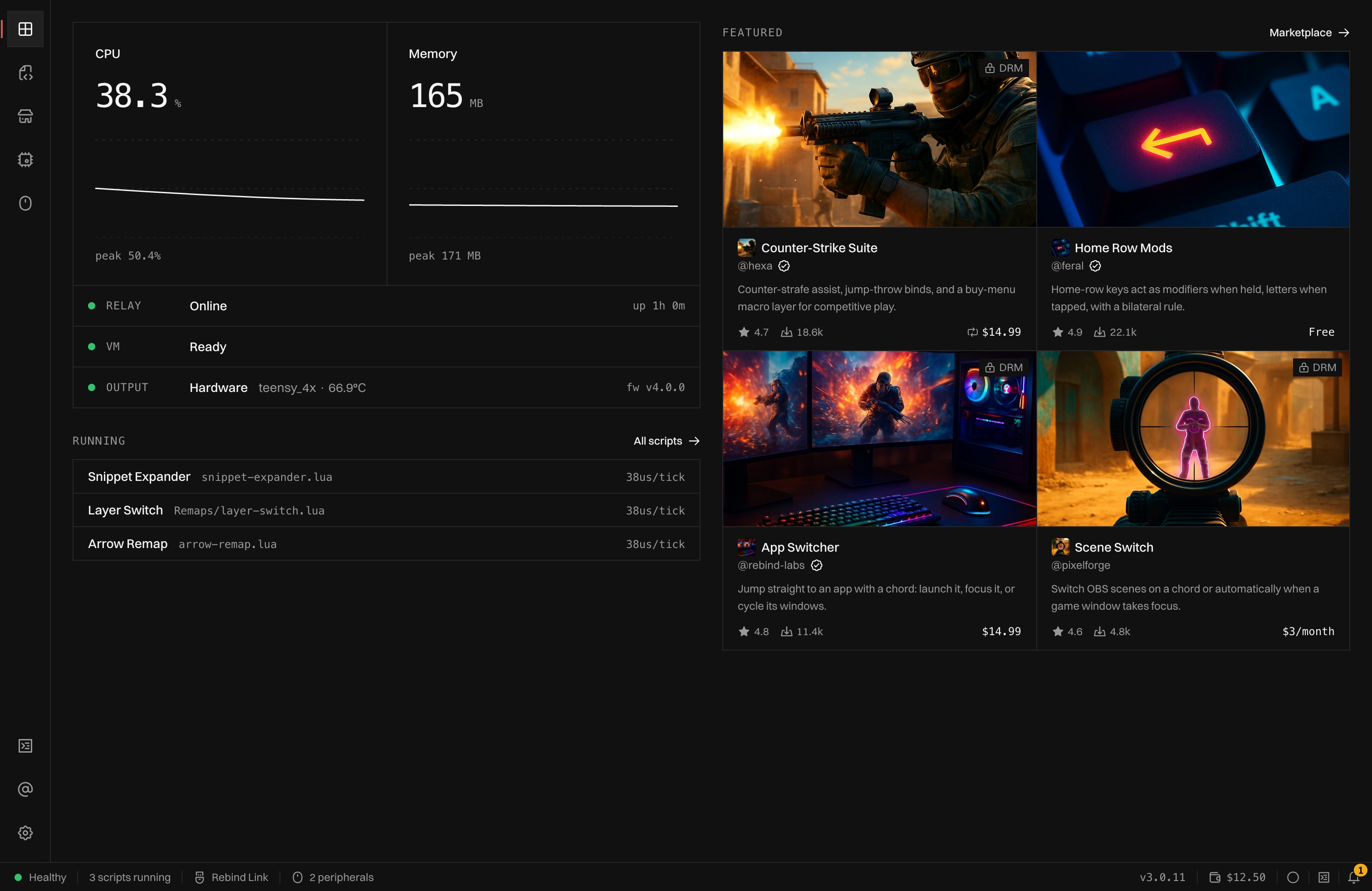 The Dashboard opens when the app starts.
* **CPU** and **Memory** graph the Rebind relay process.
* **Relay** shows Online or Offline and how long the relay has been up.
* **VM** shows Ready or Offline. It is the capture environment hardware mode
uses; when it is offline the row says scripts are paused. The row is hidden
in software mode when no Rebind Link is connected.
* **Output** shows Software or Hardware. In hardware mode it names the board,
its temperature, and its firmware version.
* **Running** lists the scripts that are running, with their time per tick.
Click one to open it in Scripts, or **All scripts** to open Scripts.
* **Featured** shows up to four marketplace listings that Rebind picked. The
section is hidden when nothing is featured.
## Status bar
The status bar is on every page. From the left:
* **Healthy**, **Degraded**, or **Offline**. Offline means the app cannot reach
the relay. Degraded means a Rebind Link is connected but the VM is not ready,
so hardware mode is unavailable.
* How many scripts are running and how many are waiting for their target app.
Click it to open Scripts.
* The output mode. Click it to open Settings.
* While a peripheral attaches or returns, its progress. In hardware mode, the
number of attached peripherals. Both open Peripherals.
On the right:
* While Assistant is working, **Assistant** and a stop button.
* The Rebind version.
* Your username, which opens your profile. **Set username** appears until you
claim one.
* Signed in, your wallet balance, which opens the wallet.
* The macro recorder circle. See [Record a macro](/getting-started/macros).
* The console button.
* The notification bell.
## Console
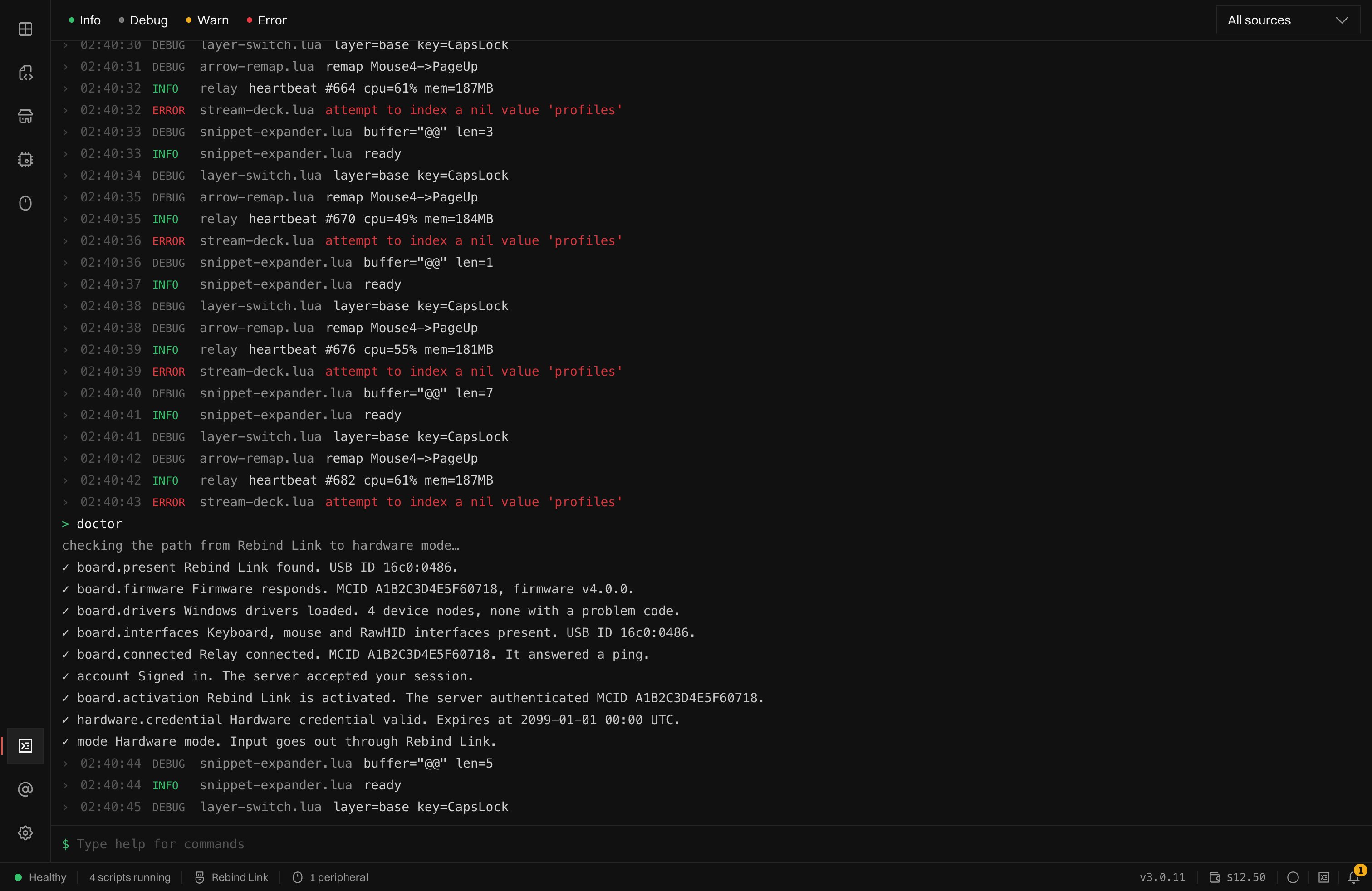
The console shows log lines from Rebind and every script, and takes commands.
Open it with **Console** in the sidebar, the console button in the status bar,
`Ctrl+J` (`Cmd+J` on macOS), or a tap of `Right Alt`. The shortcuts open a
drop-down console over the current page; press them again to close it.
Filter lines by level (info, debug, warn, error) and by source, and by file
when more than one file logs. Type
`help` for the command list. `Up` and `Down` step through earlier commands.
The Dashboard opens when the app starts.
* **CPU** and **Memory** graph the Rebind relay process.
* **Relay** shows Online or Offline and how long the relay has been up.
* **VM** shows Ready or Offline. It is the capture environment hardware mode
uses; when it is offline the row says scripts are paused. The row is hidden
in software mode when no Rebind Link is connected.
* **Output** shows Software or Hardware. In hardware mode it names the board,
its temperature, and its firmware version.
* **Running** lists the scripts that are running, with their time per tick.
Click one to open it in Scripts, or **All scripts** to open Scripts.
* **Featured** shows up to four marketplace listings that Rebind picked. The
section is hidden when nothing is featured.
## Status bar
The status bar is on every page. From the left:
* **Healthy**, **Degraded**, or **Offline**. Offline means the app cannot reach
the relay. Degraded means a Rebind Link is connected but the VM is not ready,
so hardware mode is unavailable.
* How many scripts are running and how many are waiting for their target app.
Click it to open Scripts.
* The output mode. Click it to open Settings.
* While a peripheral attaches or returns, its progress. In hardware mode, the
number of attached peripherals. Both open Peripherals.
On the right:
* While Assistant is working, **Assistant** and a stop button.
* The Rebind version.
* Your username, which opens your profile. **Set username** appears until you
claim one.
* Signed in, your wallet balance, which opens the wallet.
* The macro recorder circle. See [Record a macro](/getting-started/macros).
* The console button.
* The notification bell.
## Console
The console shows log lines from Rebind and every script, and takes commands.
Open it with **Console** in the sidebar, the console button in the status bar,
`Ctrl+J` (`Cmd+J` on macOS), or a tap of `Right Alt`. The shortcuts open a
drop-down console over the current page; press them again to close it.
Filter lines by level (info, debug, warn, error) and by source, and by file
when more than one file logs. Type
`help` for the command list. `Up` and `Down` step through earlier commands.
 | Command | What it does |
| - | - |
| `help` | Lists the commands. |
| `clear` | Hides the lines shown so far. Reopening the console shows them again. |
| `version` | Shows the relay version, the connected board, and the mode. |
| `info` | Shows relay, VM, device, and license state. |
| `devices` | Lists USB devices with bus ID, VID:PID, type, and state. |
| `scripts` | Lists your script files with their versions and paths. |
| `doctor` | Checks each step from Rebind Link to hardware mode. See [If hardware mode does not start](/getting-started/hardware-setup#if-hardware-mode-does-not-start). |
| `activate
| Command | What it does |
| - | - |
| `help` | Lists the commands. |
| `clear` | Hides the lines shown so far. Reopening the console shows them again. |
| `version` | Shows the relay version, the connected board, and the mode. |
| `info` | Shows relay, VM, device, and license state. |
| `devices` | Lists USB devices with bus ID, VID:PID, type, and state. |
| `scripts` | Lists your script files with their versions and paths. |
| `doctor` | Checks each step from Rebind Link to hardware mode. See [If hardware mode does not start](/getting-started/hardware-setup#if-hardware-mode-does-not-start). |
| `activate ` | Activates the connected Rebind Link with an activation code. |
| `reauth` | Makes the relay authenticate again now. |
| `grants` | Lists your account's grants, with expiry and source. |
| `redeem ` | Redeems a code on your account. |
| `report ` | Sends a diagnostic bundle to support. See [Send logs for review](/support#send-logs-for-review). |
| `backup` | Opens the cloud backup dialog. Passphrases and recovery keys go in the dialog, never in the console. |
| `logout` | Signs out and keeps your local scripts. |
| `feature` | Lists the app's feature flags, or turns one on or off on this computer. |
| `challenge [hex]` | With no argument, shows the account and devices the device token resolves to. With 64 hex characters, has the Rebind Link sign them. |
| `dev mock`, `dev reset` | Switches the app to a built-in sample backend, or back to the relay. |
## Notifications
The bell in the status bar collects notifications: messages scripts send with
`rb.ui.notify`, marketplace scripts that updated, and notices for your
account, such as a script shared with you. A badge counts the ones that arrived
since you last opened the list. Hover a notification and click the cross to
dismiss it, or click **Clear all**. A shared script's notification has a
**Review** button that opens the import dialog.
To also show script notifications as system notifications, turn on
**Desktop notifications** in Settings.
## Settings
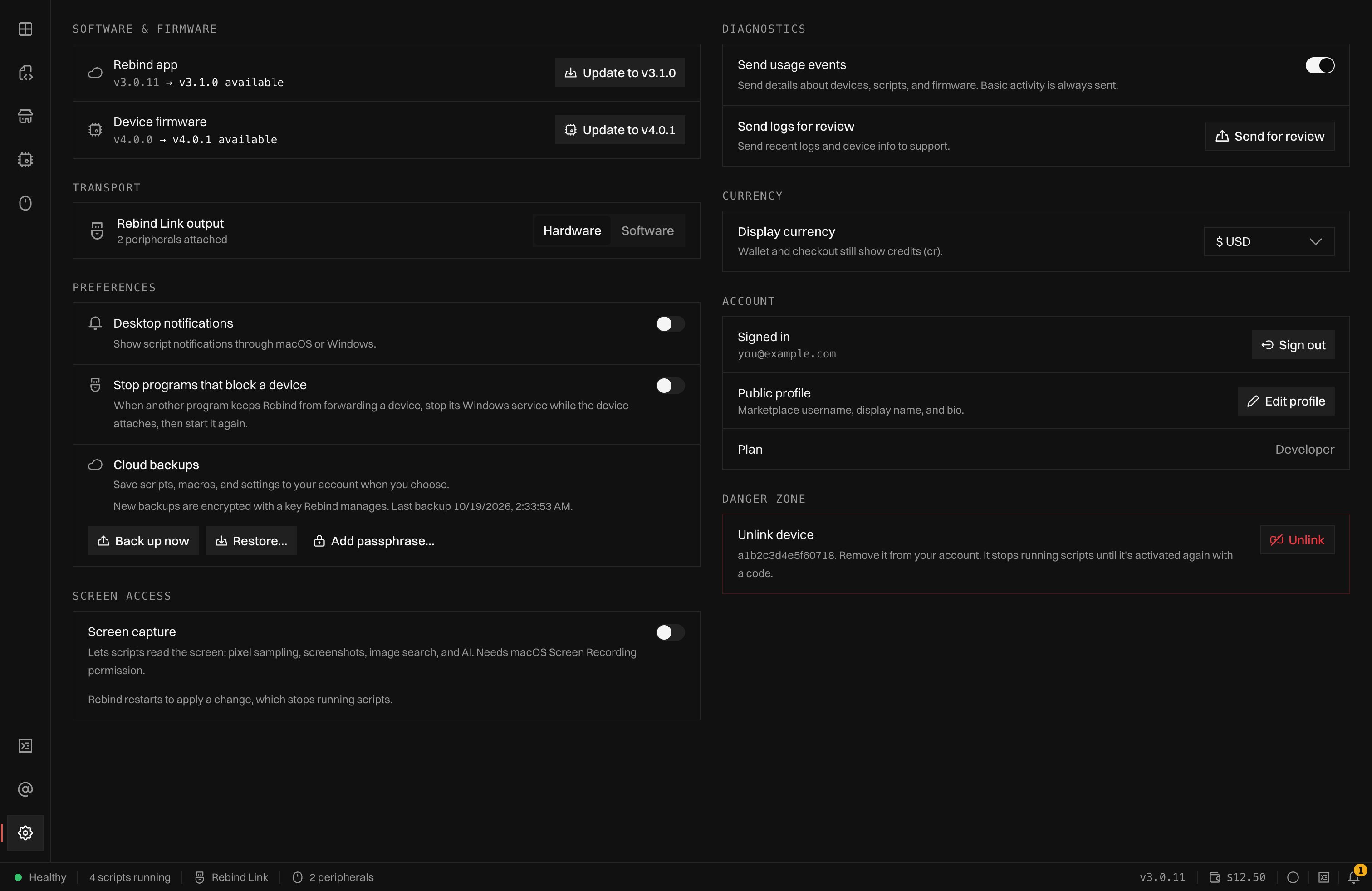 * **Software & firmware**: the installed Rebind version and the latest one.
On macOS, **Update to** installs a newer version after macOS asks for your
password; elsewhere, **Download** fetches the installer. With a Rebind Link
connected, **Device firmware** offers a firmware update when one exists.
* **Transport**: switch between **Hardware** and **Software** output. Hardware
needs you to be signed in. See [How it Works](/concepts/how-it-works#software-vs-hardware).
* **Preferences**:
* **Desktop notifications**: show script notifications as system
notifications, at most one per second. Off by default.
* **Stop programs that block a device** (Windows): when another program's
service keeps Rebind from forwarding a device, stop that service while
the device attaches, then start it again. The first time it happens,
Rebind asks.
* **Cloud backups**: back up and restore scripts, macros, and settings. See
[Sharing and backups](/account/sharing-and-backups).
* **Screen access** (macOS only): **Screen capture** lets scripts read the
screen. See [Platforms](/concepts/platforms#macos-screen-capture).
* **Diagnostics**: **Send usage events** sends details about devices, scripts,
and firmware; basic activity is always sent. **Send for review** sends logs
to support; see [Send logs for review](/support#send-logs-for-review).
* **Currency**: the currency prices are shown in. Wallet and checkout still
count credits.
* **Account**: sign in or out, **Edit profile**, and your plan.
* **Danger zone**: shown when a device is linked to your account. **Unlink**
removes it; it stops running scripts until it is activated again with a code.
## Profile
**My profile** in the sidebar, or your username in the status bar, opens your
profile. Signed in, claim a username there if you have none; it appears on your
scripts and reviews and can change once every 30 days. **Edit profile** sets
your avatar, colors, username, and a bio of up to 160 characters. **Published**
lists your marketplace listings, and **Manage listings** opens the publishing
dashboard. See [Publishing](/marketplace/publishing).
## Wallet
The wallet opens over the current page from the balance in the status bar or
from the credits button in Marketplace. It needs you to be signed in. See
[Rebind Pro](/account/pro) for the balance, credits, and Pro.
This documentation is built and hosted on [Mintlify](https://mintlify.com), a developer documentation platform.
* **Software & firmware**: the installed Rebind version and the latest one.
On macOS, **Update to** installs a newer version after macOS asks for your
password; elsewhere, **Download** fetches the installer. With a Rebind Link
connected, **Device firmware** offers a firmware update when one exists.
* **Transport**: switch between **Hardware** and **Software** output. Hardware
needs you to be signed in. See [How it Works](/concepts/how-it-works#software-vs-hardware).
* **Preferences**:
* **Desktop notifications**: show script notifications as system
notifications, at most one per second. Off by default.
* **Stop programs that block a device** (Windows): when another program's
service keeps Rebind from forwarding a device, stop that service while
the device attaches, then start it again. The first time it happens,
Rebind asks.
* **Cloud backups**: back up and restore scripts, macros, and settings. See
[Sharing and backups](/account/sharing-and-backups).
* **Screen access** (macOS only): **Screen capture** lets scripts read the
screen. See [Platforms](/concepts/platforms#macos-screen-capture).
* **Diagnostics**: **Send usage events** sends details about devices, scripts,
and firmware; basic activity is always sent. **Send for review** sends logs
to support; see [Send logs for review](/support#send-logs-for-review).
* **Currency**: the currency prices are shown in. Wallet and checkout still
count credits.
* **Account**: sign in or out, **Edit profile**, and your plan.
* **Danger zone**: shown when a device is linked to your account. **Unlink**
removes it; it stops running scripts until it is activated again with a code.
## Profile
**My profile** in the sidebar, or your username in the status bar, opens your
profile. Signed in, claim a username there if you have none; it appears on your
scripts and reviews and can change once every 30 days. **Edit profile** sets
your avatar, colors, username, and a bio of up to 160 characters. **Published**
lists your marketplace listings, and **Manage listings** opens the publishing
dashboard. See [Publishing](/marketplace/publishing).
## Wallet
The wallet opens over the current page from the balance in the status bar or
from the credits button in Marketplace. It needs you to be signed in. See
[Rebind Pro](/account/pro) for the balance, credits, and Pro.
This documentation is built and hosted on [Mintlify](https://mintlify.com), a developer documentation platform.