> ## Documentation Index
> Fetch the complete documentation index at: https://docs.rebind.gg/llms.txt
> Use this file to discover all available pages before exploring further.
# Sharing and Backups
> Send a script or package to another Rebind account or by share code, import what others share with you, and back up and restore your scripts, macros, and settings.
Both features run through your Rebind account, so the app must be signed in.
Sharing is free. Creating cloud backups is part of
[Rebind Pro](/account/pro); restoring one is not.
## Share a script
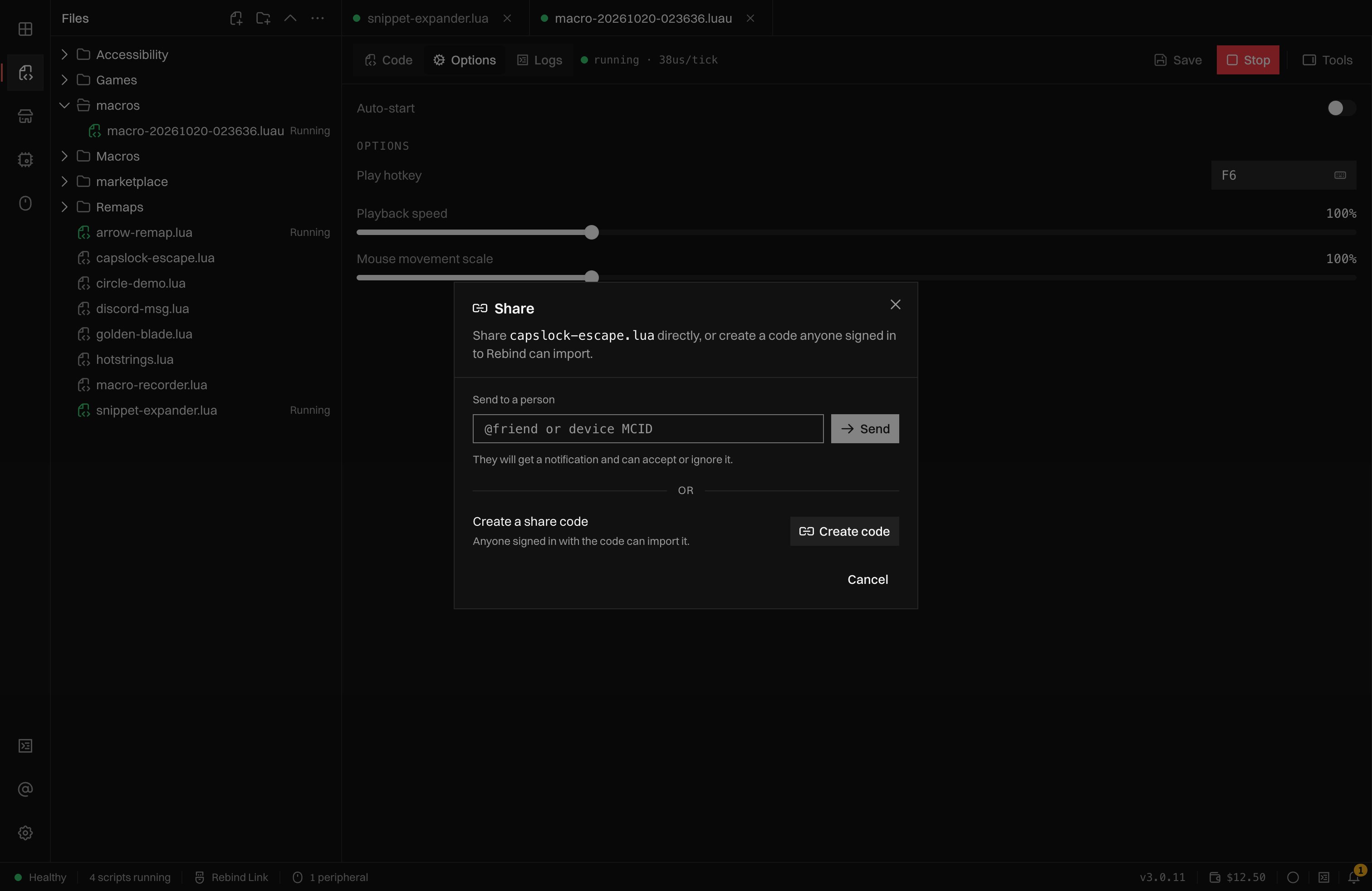
In the **Scripts** view, right-click a script or a package folder and choose
**Share**. The dialog offers two ways to send it:
* **Send to a person.** Enter their `@handle` or a device MCID and choose
**Send**. They get a notification and can accept or ignore it.
* **Create a share code.** Choose **Create code**, then **Copy**. Anyone signed
in to Rebind with the code can import it.
 A single script is sent as the file itself, up to 512 KiB. A package folder is
sent as one archive, up to 10 MiB compressed. Hidden files and folders,
`.git`, `target`, `node_modules`, and `.rbp` files are left out of the archive.
Rebind stores the shared files as they are and does not review them. Share
only with people you trust, and import only from them.
## Import a shared script
In the **Scripts** view, open **More file actions** above the file list and
choose **Import by code**. Paste the code and choose **Preview**: the dialog
shows the name, the number of files, and who shared it. Choose **Import**.
Scripts sent to you directly are listed in the same dialog under
**Shared with you**, with **Accept** and **Ignore**. The share notification's
**Review** button opens this dialog.
If the script asks for permissions, Rebind removes the download and lists them
("Import this shared script?"). Choose **Allow and import** to install it. The download is checked against the shared copy before it is written, and
the script lands in the `shared/` folder of your scripts.
A link of the form `rebind://import?source=export&code=
A single script is sent as the file itself, up to 512 KiB. A package folder is
sent as one archive, up to 10 MiB compressed. Hidden files and folders,
`.git`, `target`, `node_modules`, and `.rbp` files are left out of the archive.
Rebind stores the shared files as they are and does not review them. Share
only with people you trust, and import only from them.
## Import a shared script
In the **Scripts** view, open **More file actions** above the file list and
choose **Import by code**. Paste the code and choose **Preview**: the dialog
shows the name, the number of files, and who shared it. Choose **Import**.
Scripts sent to you directly are listed in the same dialog under
**Shared with you**, with **Accept** and **Ignore**. The share notification's
**Review** button opens this dialog.
If the script asks for permissions, Rebind removes the download and lists them
("Import this shared script?"). Choose **Allow and import** to install it. The download is checked against the shared copy before it is written, and
the script lands in the `shared/` folder of your scripts.
A link of the form `rebind://import?source=export&code=` opens the same
dialog with the code filled in. Nothing imports until you choose **Import**.
## Cloud backups
Cloud backups save this computer's scripts, macros, and settings to your
account. They run only when you ask for one. The controls are in
**Settings > Preferences > Cloud backups**.
Making a backup needs Rebind Pro. Without it, the section says "Cloud backups
are not on your plan" and still lets you restore the backups already on the
account.
### Back up
Choose **Back up now**. Each backup is a new version, and Rebind keeps the 10
newest versions; older ones are deleted as new ones arrive. If nothing changed
since the last backup, nothing is uploaded. An account can make up to six
backups an hour.
A backup includes:
* every file in your scripts folder;
* every file in your macros folder;
* your Rebind settings.
It leaves out:
* model servers you added in Assistant, with their keys, which stay on this
computer;
* the macOS screen capture setting and the cloud backup setting itself;
* `.git`, `target`, and `node_modules` folders, `.DS_Store`, and `.rbp` files;
* any single file over 25 MiB.
A backup is capped at 100 MiB in total.
### Encryption and passphrases
Backups are encrypted. By default the key is one Rebind manages, so you
restore by signing in on any computer.
To lock new backups with your own secret, choose **Add passphrase…** and enter
a passphrase of at least 8 characters. Rebind does not store your passphrase
and cannot recover it. You need it to make new backups and to restore the ones
made with it. If you lose it, backups made with it stay locked.
Choose **Remove passphrase** to go back to the managed key. Removing it does not
need the passphrase. Backups already locked with it stay locked and still need
it.
### Restore
Choose **Restore…**, pick a version, and enter its passphrase if it has one.
**Preview backup** lists the files it holds; **Restore backup** writes them.
Restoring overwrites scripts and macros with the same name and applies the
backed-up settings. Files that exist only on this computer stay. Stop running
scripts before you restore.
This documentation is built and hosted on [Mintlify](https://mintlify.com), a developer documentation platform.